
Description
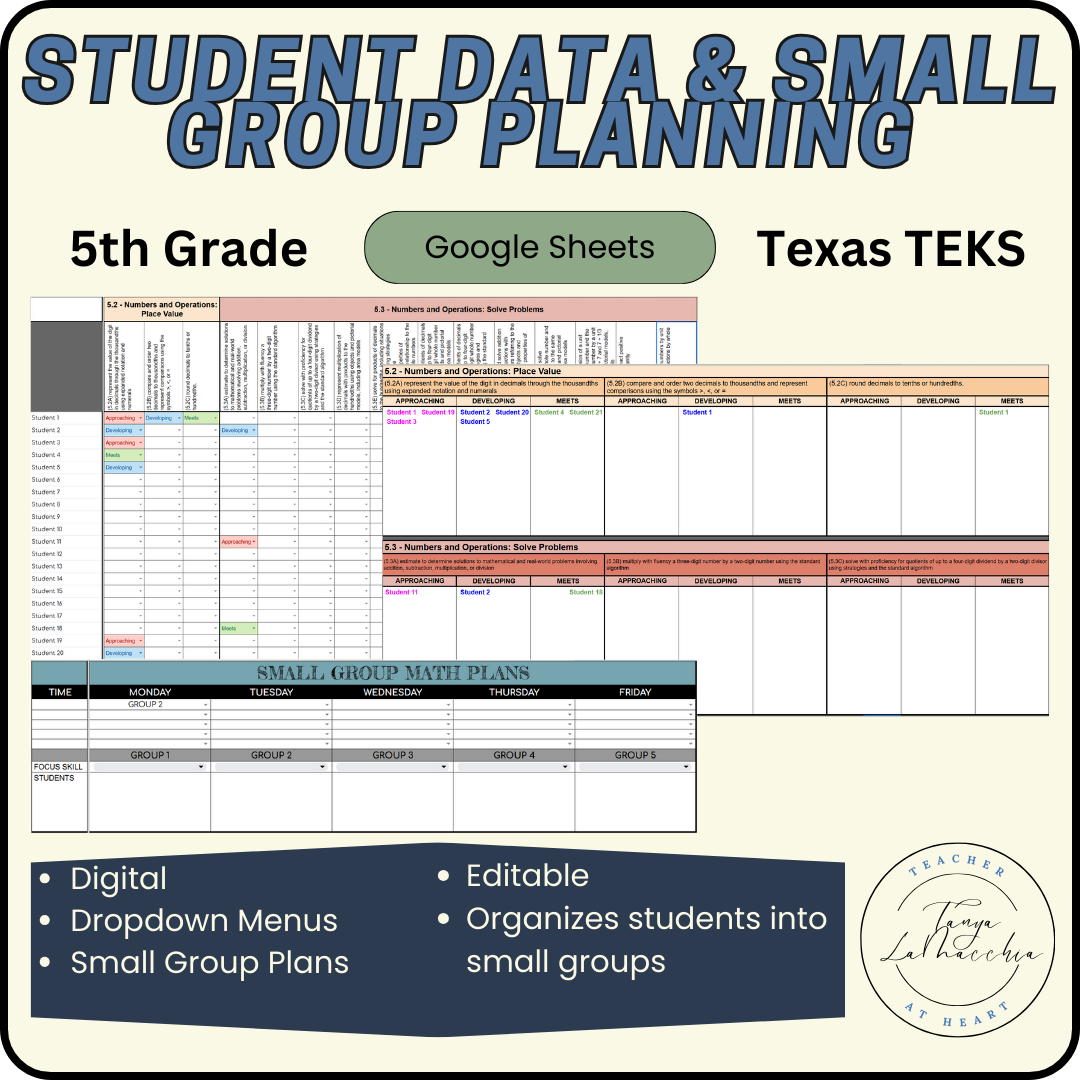
Save time organizing your student math data and planning your small groups! This Google Sheet Small group math planning and data spreadsheet will sort your students automatically once you enter the data. Then use the “small group lesson planning” tab to quickly create your small group lesson plans for the week.
9 TEXAS 5th Grade strands:
Place Value
Solve Problems
Algebraic Reasoning
Geometry & Measurement: Classify Two Dimensional Figures
Geometry & Measurement: Volume
Geometry & Measurement: Problem Solving
Geometry & Measurement: Coordinate Plane
Data Analysis
Personal Financial Literacy
***********JANUARY 2026 UPDATED VERSION************
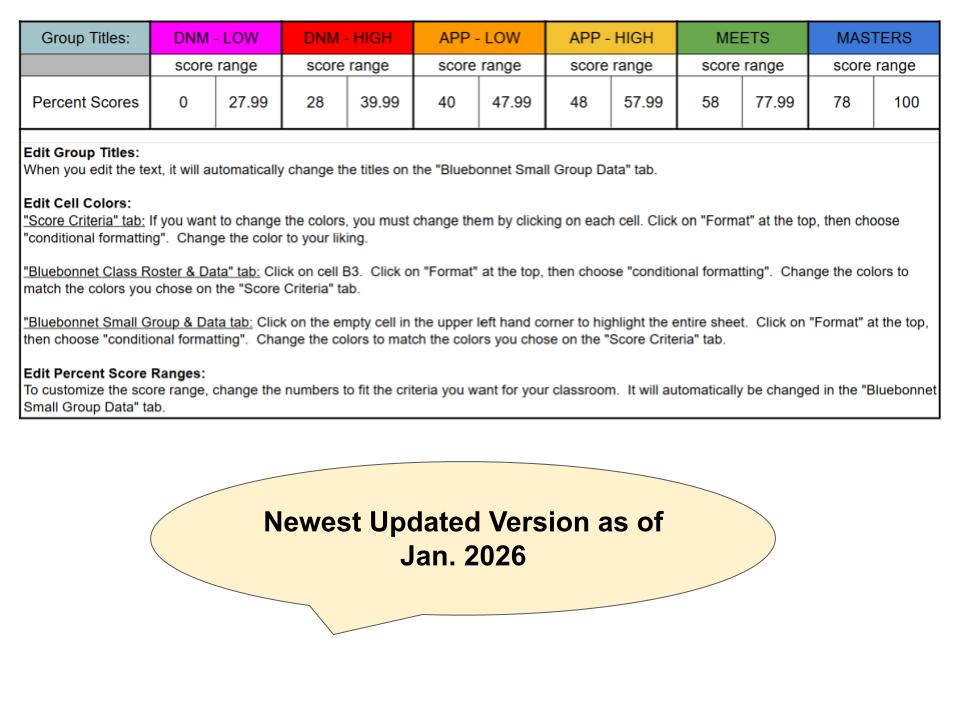
Score Criteria Tab:
Edit Group Titles:
When you edit the text, it will automatically change the titles on the “Percent Small Group Data” tab.
Edit Cell Colors:
“Score Criteria” tab: If you want to change the colors, you must change them by clicking on each cell. Click on “Format” at the top, then choose “conditional formatting”. Change the color to your liking.
“Percent Class Roster & Data” tab: Click on cell B3. Click on “Format” at the top, then choose “conditional formatting”. Change the colors to match the colors you chose on the “Score Criteria” tab.
“Percent Small Group & Data tab: Click on the empty cell in the upper left hand corner to highlight the entire sheet. Click on “Format” at the top, then choose “conditional formatting”. Change the colors to match the colors you chose on the “Score Criteria” tab.
Edit Percent Score Ranges:
To customize the score range, change the numbers to fit the criteria you want for your classroom. It will automatically be changed in the “Percent Small Group Data” tab.
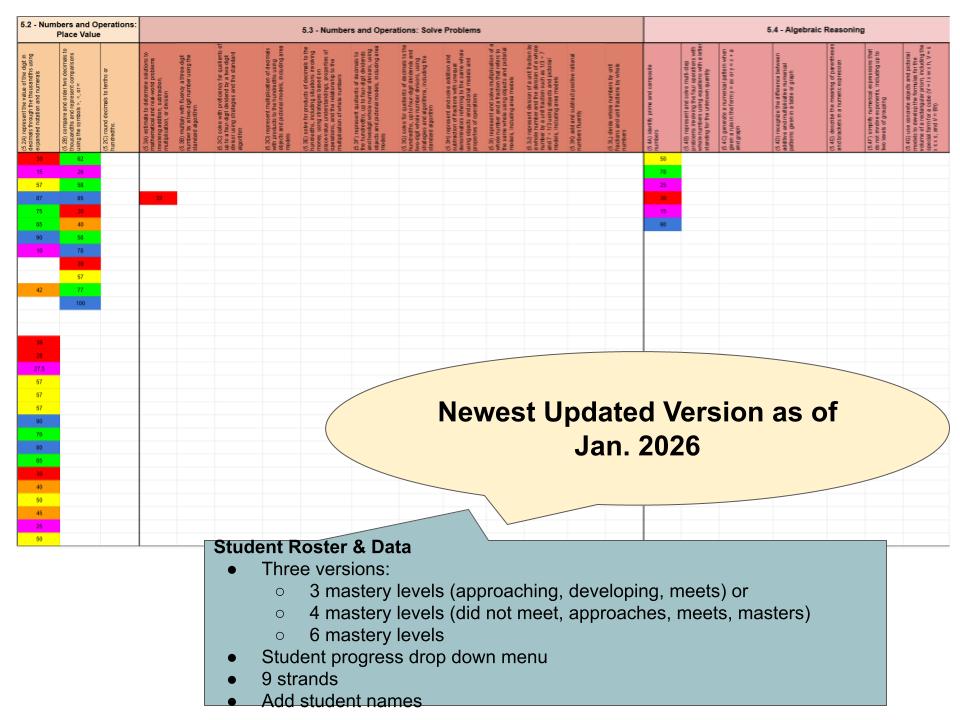
Percent Class Roster & Data tab:
Add student names. Enter the student score under each TEKS (percent). You can get this data from any formal or informal assessments. This can be updated after you have practiced in small group, or have given additional assessments. Once you have entered the data you have, click on the “percent small group data” tab.
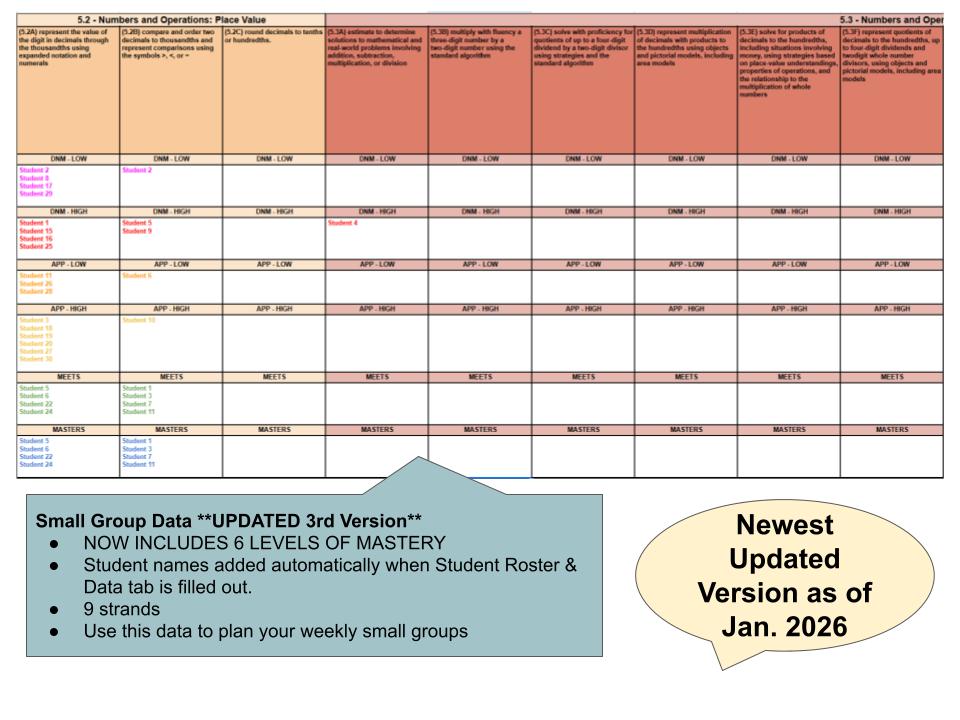
Percent Small Group Data tab:
You will not do any typing on this page. Student names will appear after you have entered student data. They will be grouped based on the progress level you assigned on the Percent Class Roster & Data tab. Use this information create your weekly small group lesson plans.
Updated Weekly Small Group Lesson Plans tab: (6 GROUPS INSTEAD OF 5)
Add the times for each small group. Use the dropdowns to insert which group you will be teaching each day and time. Add students for each group at the bottom. Use the drop down menu to choose the TEKS you will be practicing in small group. You can duplicate the tab and rename for each week of the year.
Hide any tabs you are done using. You can always access them by clicking on the three horizontal lines in the bottom left corner.
***********ORIGINAL VERSION************
Class Roster & Data:
Add student names. Use the dropdown under each TEKS to choose the progress level of each student. (“Meets”, “Developing”, or Approaching”). You can get this data from any formal or informal assessments. This can be updated after you have practiced in small group, or have given additional assessments. Once you have entered the data you have, click on the “small group data” tab.
**UPDATE** There are two additional tabs with 4 mastery levels instead of 3. They include “Masters”, “Meets”, “Approaches”, “Did Not Meet”.
Small Group Data:
You will not do any typing on this page. Student names will appear after you have entered student data. They will be grouped based on the progress level you assigned on the Class Roster & Data tab. Use this information create your weekly small group lesson plans.
Weekly Small Group Lesson Plans:
Add the times for each small group. Use the dropdowns to insert which group you will be teaching each day and time. Add students for each group at the bottom. Use the drop down menu to choose the TEKS you will be practicing in small group. You can duplicate the tab and rename for each week of the year. Hide any tabs you are done use. You can always access them by clicking on the three horizontal lines in the bottom left corner.
If you cannot find what you are looking for, send me a message at tanya@teacheratheart.com, or visit my website:www.teacheratheart.com and fill out a request form. I can create something for you.



Reviews
There are no reviews yet.